


Most professionals spend hours every week just sorting through their inboxes. Sorting messages, sending routine replies, and organizing folders can easily take over your entire schedule. If you find yourself constantly buried in unread messages, implementing Outlook email automation can completely transform your daily routine.
Email automation allows your inbox to work for you. By setting up specific triggers and actions, you can eliminate repetitive tasks and focus on your actual work. You will learn how to leverage built-in tools to handle everything from sorting incoming messages to scheduling outbound responses.
Implementing a few simple automated processes can significantly improve your productivity. Let us look at the best ways to streamline your inbox using Microsoft’s powerful email features.
Microsoft Outlook Email Automation Tools

Microsoft Outlook comes packed with native tools designed to help you manage your communication more effectively. You do not always need expensive third-party software to get started. The platform offers Quick Steps, Rules, and integrations with Power Automate to handle repetitive tasks.
Quick Steps allow you to perform multiple actions with a single click, like moving an email to a specific folder and marking it as read simultaneously. Power Automate, on the other hand, connects Outlook to other Microsoft 365 apps, enabling complex workflows across your entire digital workspace. These techniques align closely with modern principles of email marketing made simple and structured systems.
How to Automate Emails in Outlook
Managing a busy inbox can quickly become overwhelming, especially when important emails are buried under newsletters, promotions, and daily notifications. This is where outlook email automation becomes extremely valuable. By automating repetitive email tasks, Outlook helps users save time, improve organization, and maintain better productivity throughout the workday. Instead of manually sorting, forwarding, or categorizing messages, Outlook can perform these actions automatically based on rules you create.
The foundation of effective outlook email automation is the built-in Rules feature. Rules work like automated instructions that tell Outlook exactly how to handle incoming or outgoing messages when they match specific conditions. Once configured, these rules continue running in the background, helping users maintain a clean and organized inbox without constant manual effort.
Understanding the basics of automation is similar to learning email marketing fundamentals for beginners, where structured systems help reduce manual effort and improve consistency.
Automated Email Rules in Outlook
Outlook Auto Reply and Scheduling Setup
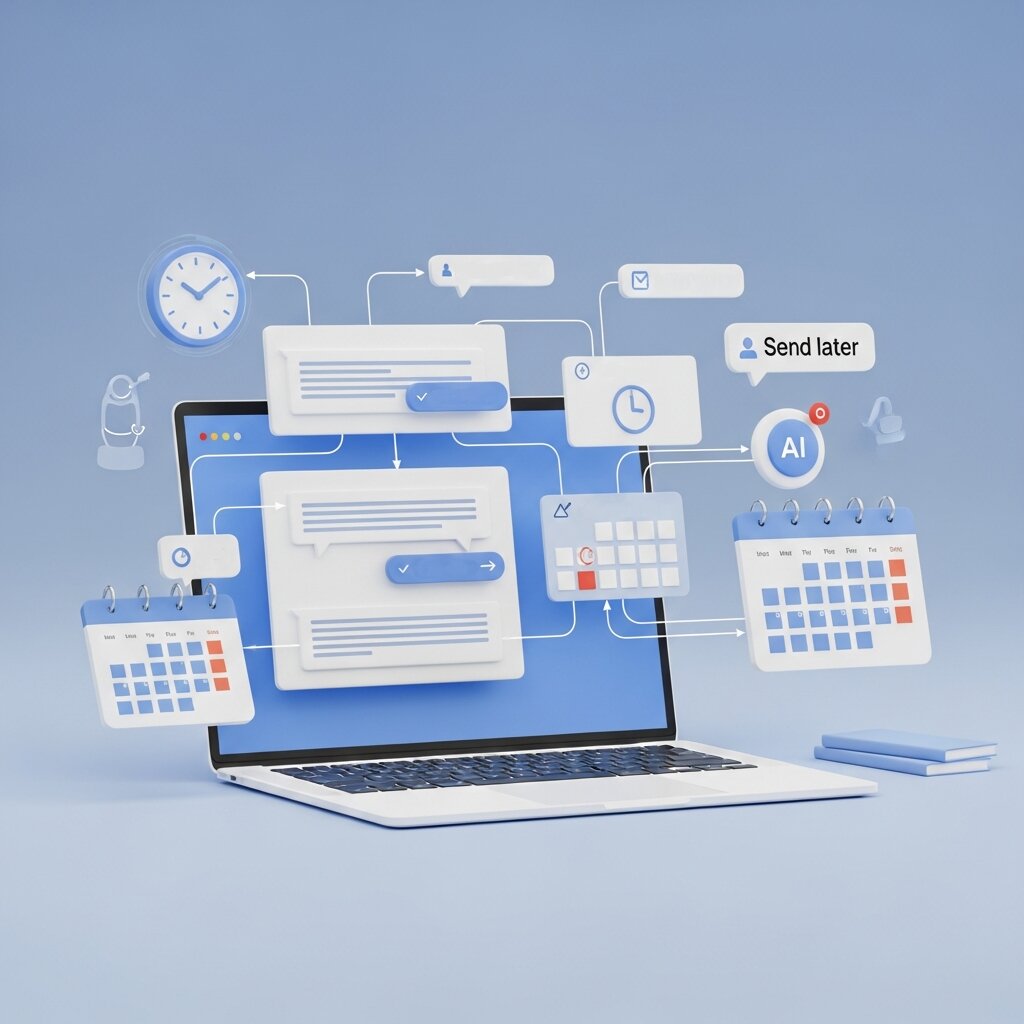
Managing communication expectations is a critical part of business email automation with Outlook. The Out of Office (Automatic Replies) feature is the most common example, but you can also use rules to trigger specific replies based on the sender or subject line.
Scheduling emails is another highly effective tactic. If you are working late but do not want to disturb your team, you can draft your message and use the “Delay Delivery” option. This ensures the message hits their inbox at 8:00 AM the next morning. Controlling when your emails are sent helps maintain professional boundaries and improves response rates.
Business Email Automation with Outlook
In a business environment, communication speed and accuracy play a major role in maintaining client relationships and meeting deadlines. Managing hundreds of emails manually can easily lead to missed follow-ups or delayed responses. By using Outlook’s automation features, businesses can ensure that important messages are tracked properly, responses are timely, and no critical communication gets overlooked. Automated workflows help teams stay organized while maintaining a consistent and professional communication process.
Outlook Email Task Automation Tips
One of the most effective ways to stay on top of important emails is by turning them into actionable tasks. Outlook makes this simple by allowing users to convert emails directly into tasks with just a drag-and-drop action into the Tasks section. This ensures that important requests, deadlines, or client instructions are not forgotten and are tracked until completion.
You can also set up rules to automatically flag emails from specific clients, departments, or projects. This helps prioritize high-value communication and ensures follow-ups happen on time. Instead of manually reviewing your inbox repeatedly, flagged emails act as visual reminders that keep your workflow structured and focused.
For more advanced automation, tools like Power Automate can take follow-up management even further. For example, you can create workflows that automatically remind you to follow up if a client has not responded within a set timeframe, such as 48 or 72 hours. This reduces the risk of lost opportunities and improves response consistency across teams.
Boosting Email Productivity Automation in Outlook

Improving email productivity requires more than just using individual features—it requires a structured and intentional approach. The first step is identifying the repetitive tasks you perform every day, such as forwarding invoices, categorizing support tickets, or responding to similar client queries. Once these patterns are clear, you can begin automating them using rules and built-in Outlook tools.
Simple automations, like routing emails with specific keywords or attachments into designated folders, can significantly reduce inbox clutter. Over time, these small improvements add up, creating a smoother and more efficient workflow.
As automation increases, your inbox becomes more organized and predictable. Important messages are easier to find, routine tasks require less manual effort, and overall focus improves. This allows professionals to spend less time managing emails and more time on strategic, high-impact work that drives business growth.
Frequently Asked Questions
What is Outlook email automation?
Outlook email automation refers to using built-in features like rules, Quick Steps, and Power Automate to handle repetitive email tasks without manual effort.
How do I create a rule in Outlook?
Go to the Home tab, click “Rules,” choose “Create Rule,” and define the specific conditions and actions for your incoming or outgoing messages.
Can I automate email replies?
Yes. You can use the Automatic Replies feature for vacation responders, or set up a specific rule to reply to messages containing certain keywords with a pre-written template.
How do I schedule an email in Outlook?
Write your email, go to the Options tab, click “Delay Delivery,” and select the specific date and time you want the message to be sent.
Does Outlook have workflow automation?
Yes. You can build advanced workflows using Microsoft Power Automate to connect Outlook with other apps like Teams, SharePoint, and Excel.
How can I automate follow-up emails?
You can set custom flags on sent emails to remind yourself to follow up, or use Power Automate to trigger automated reminders if no reply is received.
What are Quick Steps in Outlook?
Quick Steps are customizable shortcuts that let you perform multiple actions on an email—like categorizing, moving, and replying—with a single click.
Can I automate email forwarding?
Yes. You can create a rule that automatically forwards emails from specific senders or containing specific keywords to another email address.
Is Power Automate free with Outlook?
Many basic Power Automate features are included with standard Microsoft 365 business subscriptions, though premium connectors may require an additional license.
How do I stop spam using automation?
You can set up rules to automatically delete or move emails to the Junk folder if they come from specific domains or contain common spam keywords.
Can I automate calendar invites from emails?
Yes. Power Automate can be configured to scan incoming emails for specific event details and automatically create events on your Outlook Calendar.
How do I auto-archive old emails?
You can use the AutoArchive feature in Outlook settings to automatically move emails older than a certain date to an archive folder to save space.
Can Outlook sort my emails automatically?
Yes. By setting up folder rules, Outlook will instantly route incoming messages to designated folders based on the sender, subject, or message content.
Are there third-party tools for Outlook automation?
Yes. While native features are powerful, many sales and marketing platforms integrate seamlessly with Outlook to provide advanced tracking and drip campaigns.
Does email automation work on the Outlook mobile app?
Rules set up on the desktop or web version of Outlook (tied to an Exchange server) will generally run on the server side, meaning your inbox will remain organized even when viewing it on the mobile app.
Take Control of Your Inbox Today
Taking control of your inbox does not require complicated software or advanced technical skills. In many cases, the tools you need are already built into Outlook. By using outlook email automation, professionals can eliminate repetitive tasks, reduce distractions, and create a far more organized email management system. Instead of spending valuable time manually sorting messages, flagging emails, or moving conversations into folders, Outlook can automatically handle these actions in the background.
One of the biggest advantages of outlook email automation is the amount of time it saves each day. Even small repetitive tasks can add up over weeks and months. Automating routine actions such as organizing newsletters, prioritizing client emails, forwarding reports, or categorizing team communications allows you to focus on more meaningful and productive work. A cleaner inbox also helps reduce stress and makes it easier to identify urgent messages quickly.
If you are new to outlook email automation, start small by identifying the tasks you repeat most often. You might create a simple rule that automatically moves promotional emails into a separate folder or flags messages from important contacts. Once you become comfortable using Outlook Rules, you can explore additional automation tools such as Quick Steps, automatic replies, email categories, and workflow integrations that further streamline communication.
Over time, these automated systems can completely transform the way you manage email. Many professionals discover that outlook email automation not only improves productivity but also helps maintain better focus throughout the day by reducing inbox clutter and unnecessary interruptions.
The best way to experience the benefits is to begin immediately. Log into Outlook today, create your first automated rule, and see how even a small amount of outlook email automation can make your daily workflow faster, cleaner, and more efficient.


I'm Email Marketer who crafts targeted campaigns that drive engagement, nurture leads, and boost conversions. With a passion for creating personalized email strategies.
















No Comments